



An SSD provides amazing speed benefits, but the cost per gigabyte is much higher. Here’s how to make the decision.
A 256GB solid-state drive and a 1TB hard disk drive may seem like two versions of the same purchase, but choosing between them involves making two different decisions. One is about the technology that stores your data. The other is about how much data you need to keep.
For a computer’s main drive, a 256GB SSD is usually the better choice as long at that’s enough room for your files. SSDs are much faster than hard disk drives (HDDs), which affects startup times, application loading and everyday responsiveness. A 1TB HDD gives you far more space and generally costs less per gigabyte, making capacity the better trade when you’re storing large game libraries, photos, videos or backups.
A 256GB SSD is usually the better system drive
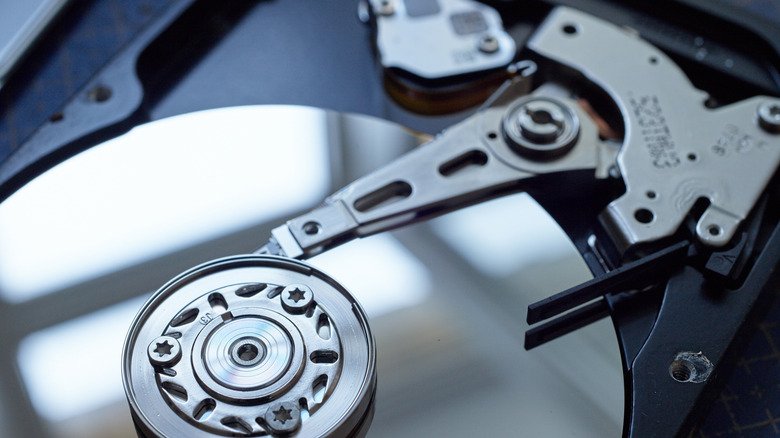
The speed difference comes from how each drive reaches your data. An HDD stores data magnetically on spinning platters, with a read/write head that moves to the location it needs. An SSD stores data in flash memory and retrieves it electronically, without waiting for mechanical parts to move into position.
That distinction is particularly noticeable on a system drive, where both booting Windows and opening apps requires frequent storage access. Faster storage reduces the time the computer spends waiting for those requests, which is why switching from an HDD to an SSD can make even an older PC feel more responsive.
SSDs have a few other practical advantages. They operate silently with no moving platters or read/write heads, making them better suited to the bumps and vibration a laptop or portable drive may encounter.
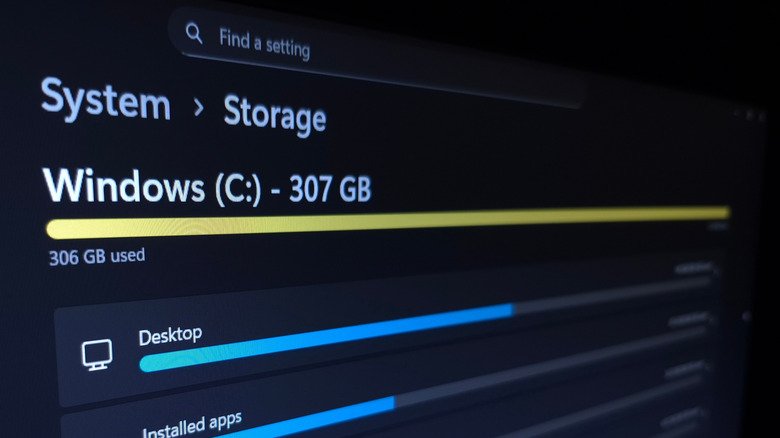
The catch is the 256GB part. Windows 11 requires at least 64GB of storage, so a 256GB SSD comfortably clears the operating system’s minimum requirement. That 64GB figure is a floor, though, not a recommendation for how much space you’ll actually want or need. Programs, Windows updates, downloads and your own files all compete for whatever remains.
That makes 256GB much easier to live with if you mostly browse the web, work with text documents, stream media and keep much of your personal data in cloud storage. It’s also why our current laptop recommendations treat 256GB as a workable minimum for both Windows and Mac systems, while 512GB or higher makes more sense if you store lots of files locally. Large creative projects and modern games can quickly require 1TB or more to stay comfortable.
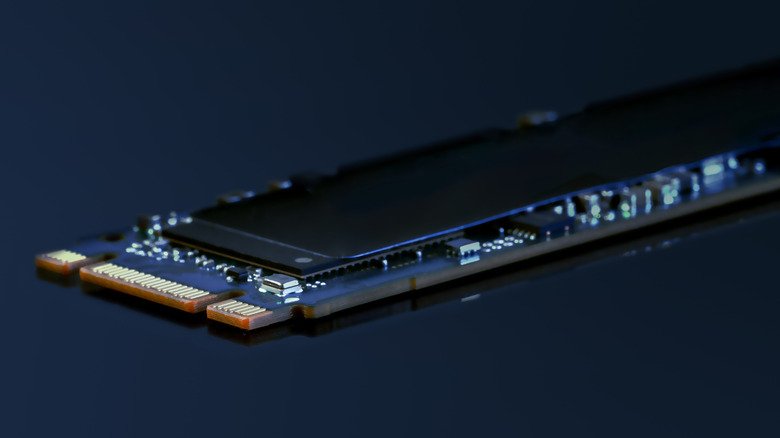
The type of SSD also matters if you’re upgrading an existing computer. A 2.5-inch SATA model can be a straightforward option for an older PC, while most newer systems support much faster NVMe drives. The best SSDs in 2026 span both types, so what your computer supports can narrow the choice before capacity enters the picture.
A 1TB HDD makes more sense when space matters
A 1TB drive has about 3.9 times the advertised capacity of a 256GB drive. If you’re deciding between these exact two options, that’s a substantial amount of storage to give up for speed.
Large games can consume dozens or even hundreds of gigabytes, while RAW photos, video projects and local media libraries can grow continuously. Backups are a specific case where the goal is usually to preserve a lot of data, rather than having access to every file as quickly as possible. A 256GB SSD can perform those jobs, but faster storage can’t compensate for files that don’t fit.
That’s where HDDs still make sense. They generally provide storage at a lower cost per gigabyte, so they’re well-suited to backups, media collections and other workloads where capacity matters more than minimal access times. An HDD is slower than an SSD, but playing a stored video or keeping an archive doesn’t have the same performance demands as running an operating system.
There’s a physical trade-off as well. The platters and moving head inside an HDD can produce noise and make the drive more susceptible to shock. That said, those disadvantages matter more in a laptop or portable drive than in a desktop that spends its life sitting under a desk. The larger size of an HDD doesn’t really matter in a desktop unless you’re going for a beautiful minimalist build.
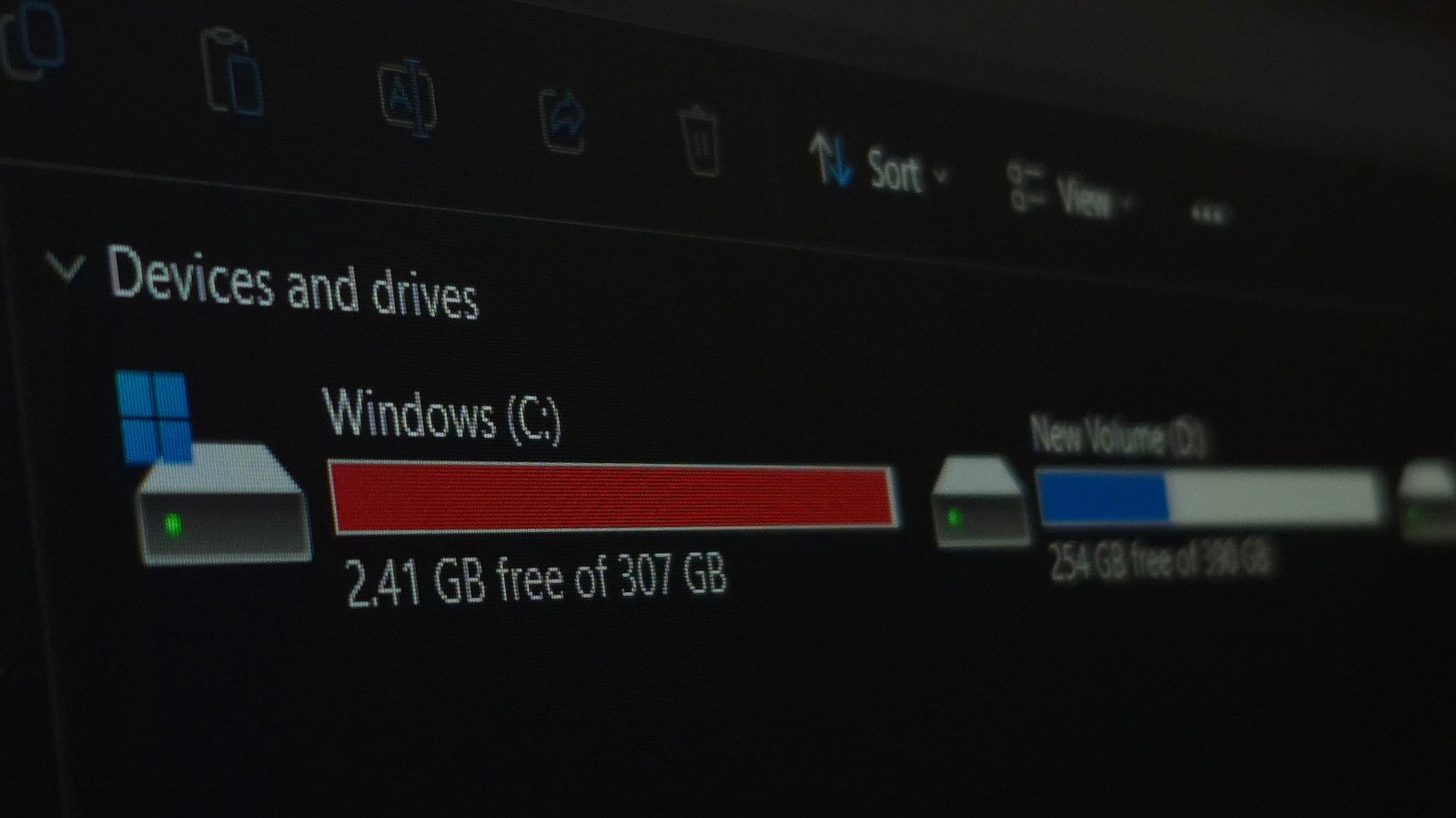
If your computer mostly holds documents and cloud-synced files, you may never use the extra space a 1TB HDD provides. But if you’re regularly deleting games or moving projects elsewhere to free up room, the 256GB SSD’s speed advantage can start to feel less useful.
You can use an SSD and HDD together
Thankfully, an SSD and HDD don’t have to compete for the same job. A desktop with room for multiple drives can use a smaller SSD for Windows, apps and frequently accessed games or project files. Then, pair it with a larger HDD to handle backups, media and other bulk storage.
That setup takes advantage of what each technology does well. The SSD handles the files where quick access changes how the computer feels, while the HDD provides relatively inexpensive room for data that just needs somewhere to live. You can, for instance, keep your most-played game on the SSD while having other titles ready on the HDD to swap in.
An external drive can fill the same role if adding another internal drive is impractical. Top-rated portable SSDs keep much of the speed advantage of solid-state storage, while an external HDD generally gives you more capacity for the money. Either option can give a laptop with a smaller internal SSD more room without replacing that drive.
If your computer only has room for one drive, the decision is simpler. Choose the 256GB SSD if that amount of space comfortably covers what you keep locally and you want a more responsive system. Choose the 1TB HDD if 256GB would have you constantly deleting or relocating files, and if storage capacity matters more than speed. When in doubt, go for the SSD, because it’s easier to add an external drive for more storage later than to replace the system drive.
