



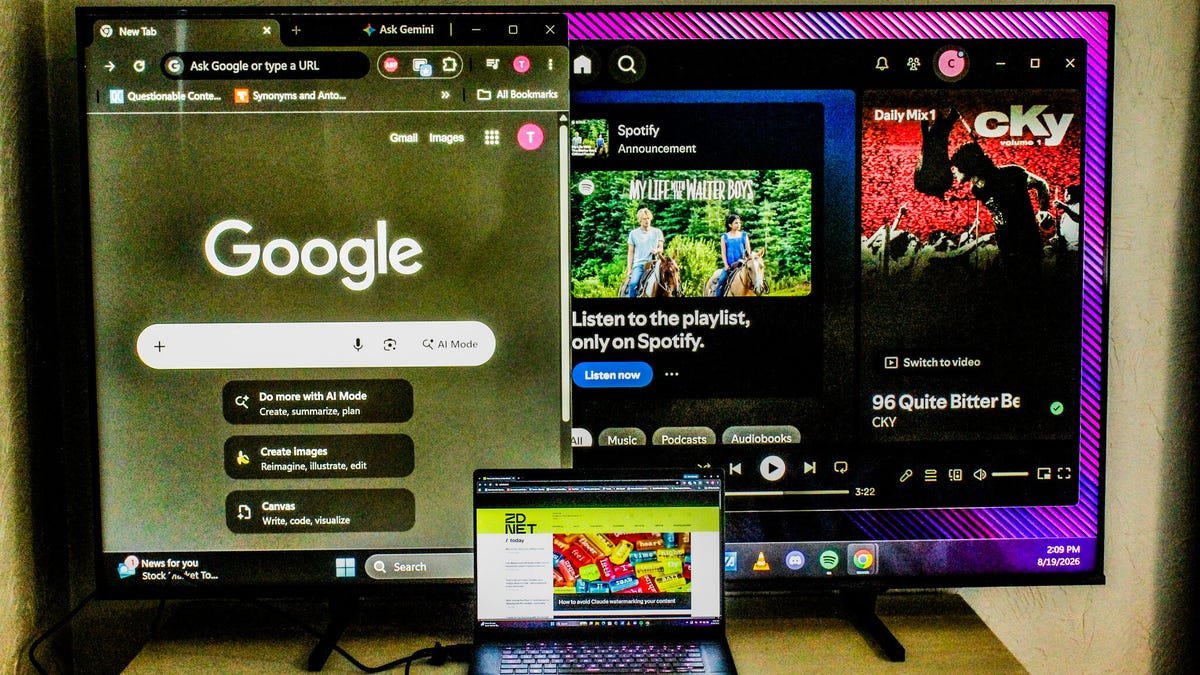
Computer monitors can come with some pretty steep price tags, especially if you’re in the market for a specialized screen for PC gaming or creative work like animation or video editing. This is doubly true if you want a high-end OLED display, a 4K monitor, or a super-sized screen.
Also: How I turned my old Android phone into a streaming stick for free
There’s a way around this, however. If you’re looking for a cheap solution, you can easily connect your TV to a laptop or PC to use as your main screen, a part of your current multi-monitor setup, or as an emergency backup monitor. Depending on how you want to connect your TV to your computer, you might not have to spend any money at all.
I’ve put together a short walkthrough for setting up your TV as a monitor on Windows, Mac, ChromeOS, or Linux as either a temporary solution or a more permanent addition to your setup.
How to use your TV as a monitor
The quickest and simplest way to connect your PC to your TV is by connecting them with a regular HDMI cable and selecting the correct input in your menu settings. Once everything is set up and powered on, you’ll have an almost perfect mirror of your desktop on your TV.
If your PC or laptop uses Thunderbolt or DisplayPort for connecting external displays, you’ll have to pick up a USB-C-to-HDMI or a DisplayPort-to-HDMI adapter. They’re around $10-15, but keep in mind that since the TV still relies on HDMI, you won’t get the same high-speed data transfers as you would with a monitor that has a DisplayPort or Thunderbolt connection.
Also: How to disable ACR on your TV (and why it makes such a big difference when you do)
You can also go wireless. Almost all new smart TVs also support either Apple’s AirPlay or Googlecast screen mirroring for wireless casting from your devices to your screen. If you use this option, however, you might experience significant input lag or resolution issues as both your TV and computer compress, transmit, and then display information. If you have a newer Samsung or LG TV, you can set up remote PC access by toggling on the setting on your laptop or desktop, and setting up the dedicated remote access app with your device’s IP address.
Here’s how to find your IP address:
Windows
- Windows key > Type cmd > Open Command Prompt > Type ipconfig and press Enter > Locate IPv4 address
- Start > Settings > Network & Internet > Wi-Fi/Ethernet > Select network > Scroll to see IP address
- Apple menu > System settings > Network > Wi-Fi/Ethernet > Details > Locate IP address
ChromeOS
- Clock > Wi-Fi/Ethernet > Information > Locate IP address
Linux
- Settings > Wi-Fi OR Network > Click gear icon > view IP address
- Run hostname -I> Print internal IP address
- Run ip addr > Locate active network (eth0 for hardwired or wlan0 for Wi-Fi) > Locate inet
- Run iconfigto view network details
Display settings
If you want to use your TV as a second (or third, or fourth) screen for your PC setup, you’ll have to locate your display settings and reconfigure your monitor arrangement.
Windows
- Right-click Desktop > Display Settings > Arrange screens > Choose scaling options
- Apple menu > System Preferences > Displays > Arrangement > Resolution options
ChromeOS
- Click on the clock > Click gear icon > Device > Displays > Layout, Display size, etc.
Linux
- Settings > Displays > Select screens > Resolution, Refresh rate, Orientation > Scale > Apply
- Type xrandr> Confirm –output <display_name> > Confirm –mode <resolution>(e.g. 1920 x 1080 or 3840 x 2160) > Confirm –rate <hz>> Arrange monitors –output <secondary_display) –<direction> of <primary_display>
Getting the best picture
The most important factor is to match the resolution output between the computer and TV. If you’re lucky enough to own a computer capable of native 4K resolution, you can skip this step and move on to the next process. But if your laptop or desktop is only capable of 1080p or lower, you’ll have to change your TV’s output to match to avoid blurry text or pixelated images. You can do this by navigating to:
- Settings > Display OR Picture > Device preferences > Resolution OR Output Resolution > Select 1080p or Auto
If your TV has a PC picture mode, it will be your best option for reducing input lag and getting a consistent refresh rate, whether you’re using a hardwired HDMI connection, screen mirroring, or using remote access.
Also: The best Hisense TVs of 2026: Expert tested for streaming, gaming, and more
But if it doesn’t, you can use the dedicated Game Mode, which often have specialized features like automatic low latency, very low response times, boosted refresh rates, and even VRR support mind that it won’t be a perfect solution, and you may see a few hiccups now and again as both your computer and TV process data signals sent between them
With a little patience (and some grace), your smart TV can be a great temporary solution for certain projects or even as a permanent addition to your multi-monitor setup as a dedicated gaming or streaming screen.
The bottom line
Two of the biggest reasons to use a TV rather than a purpose-made PC monitor is that you can get a lot more screen real estate for a lot cheaper. If you want an ultra-widescreen monitor with 4K resolution, a high refresh rate, and maybe even an OLED or QLED panel, you’re looking at the possibility of spending a decent chunk of change.
The Alienware 34-inch QD-OLED gaming monitor will cost you around $750, and, granted, that gets you a 240Hz refresh rate, a 0.03ms response time, and multiple connection options, but it falls a bit short with resolution, topping out at just 1440p. And it doesn’t have built-in speakers, or even a 3.5mm connection for headphones.
Also: This Micro RGB TV rivals pricier OLED models – and I’d recommend it, especially on sale
Compare that to the 32-inch Hisense A4 which costs around $110, gives you 4K resolution, and DTS Virtual:X audioefresh rate, since it tops out at 60Hz. Which is fine for streaming, but may cause frame rate issues in demanding games
More how-tos
How to download YouTube videos for free, plus two other methods
Wi-Fi problems? Add a wired network to your home without Ethernet cable – here’s how
Wiping a Windows laptop? Here’s the safest free way to erase your personal data
How to connect a PS4 controller to a smartphone
- How to download YouTube videos for free, plus two other methods
- Wi-Fi problems? Add a wired network to your home without Ethernet cable – here’s how
- Wiping a Windows laptop? Here’s the safest free way to erase your personal data
- How to connect a PS4 controller to a smartphone
