


Close Menu
ToolTechBlogToolTechBlog

    Subscribe to Updates

    Get the latest creative news from FooBar about art, design and business.

    What's Hot

    OpenAI announces new discoveries in mathematics, computer science and physics

    October 27, 2026

    X is nudging users to promote their posts with a pointing hand, and people are confused

    October 27, 2026

    Browser Fingerprinting Explained: How Websites Identify You and How Developers Can Reduce It

    October 27, 2026
    Facebook X (Twitter) Instagram
    ToolTechBlogToolTechBlog
    • Home
    • AI Tools
    • Web Hosting
    • Tech
    • Digital Marketing
    • Business Software
    • VPN & Cybersecurity
    ToolTechBlogToolTechBlog
    Home»Tech»How to get started with Shortcuts on your MacBook
    Tech

    How to get started with Shortcuts on your MacBook

    Tool Tech TeamBy Tool Tech TeamSeptember 29, 2026No Comments4 Mins Read
    Facebook Twitter Pinterest Telegram LinkedIn Tumblr WhatsApp Email
    How to get started with Shortcuts on your MacBook
    Share
    Facebook Twitter LinkedIn Pinterest Telegram Email

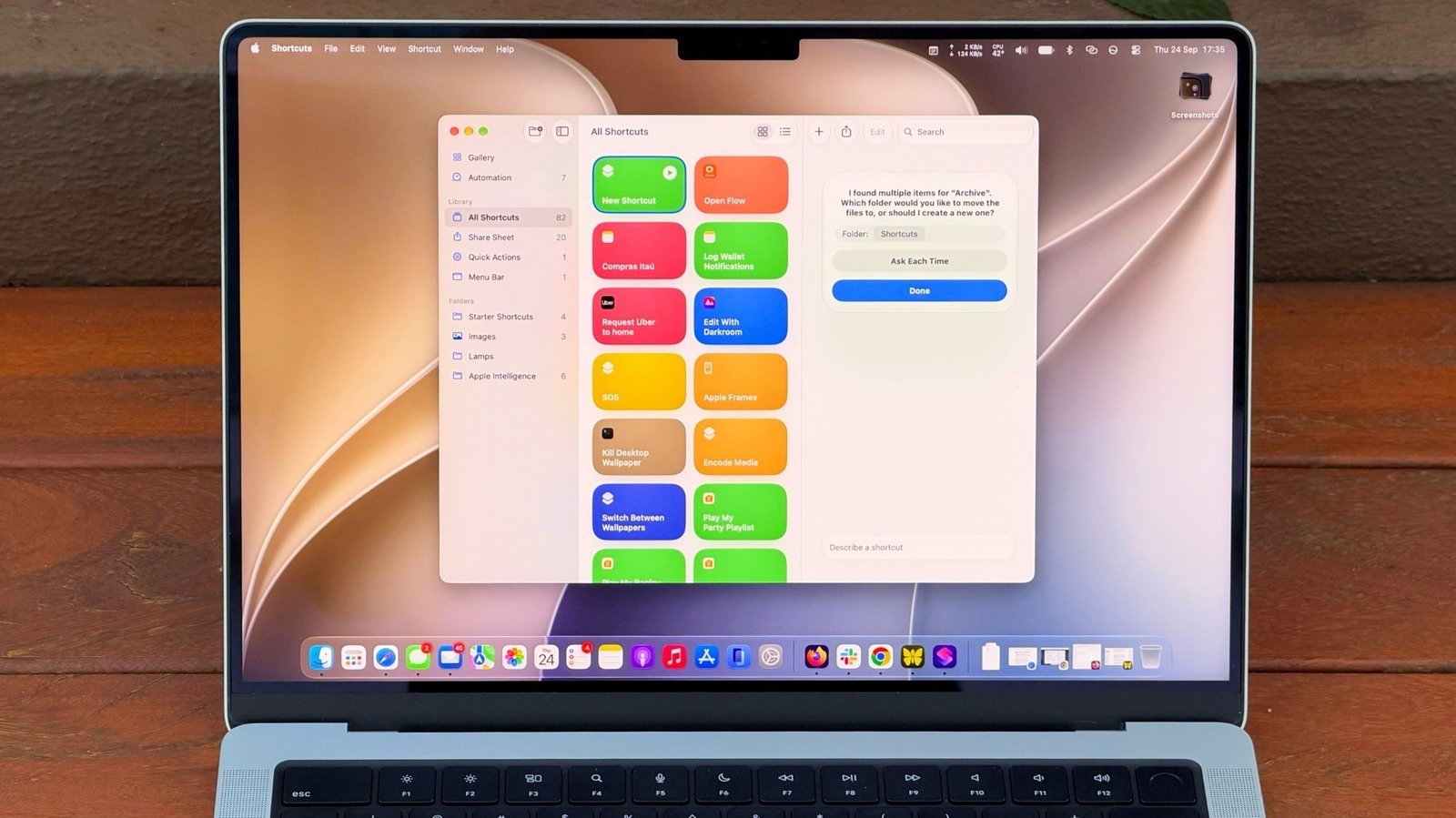
    Automate your Mac with ease using Shortcuts and Apple Intelligence.

    Shortcuts has been available on Mac since macOS Monterey, but it’s one of those utilities many Mac users have never explored. At first, it can seem too complicated. You have to know which actions to choose and how to connect them, then hope it all works. 

    But macOS 27 Golden Gate changes that with Describe a Shortcut, which lets you type exactly what you need and have Shortcuts do the heavy work for you with AI. It doesn’t always work, but it makes the app much easier to use — especially if you’re not an expert.

    If you’re not familiar with Shortcuts, it’s an automation tool where you create scripts to handle tasks on your devices. Apple’s own example is a shortcut that texts your spouse with an estimated arrival time based on traffic when you’re leaving work. But you can get much more complex, like a shortcut that checks your calendar and the weather to give you a summary of what to expect today. 

    There are many possibilities, and now with macOS 27, it’s much easier to master the app.

    Creating shortcuts on your Mac is easy
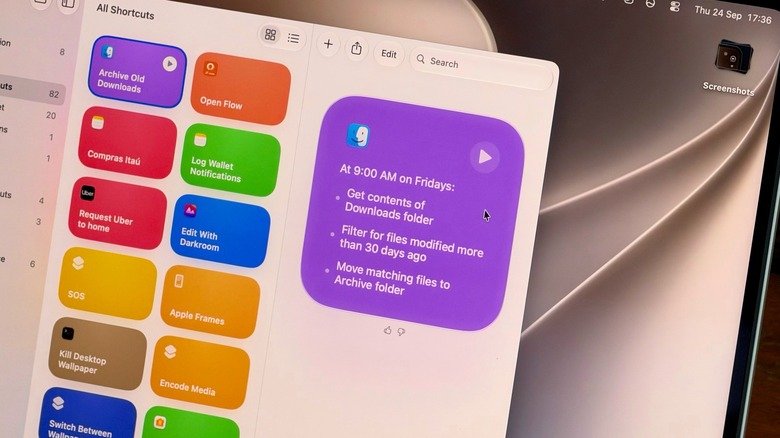
    Apple's Shortcuts app on a Mac, showing a recently created shortcut to clean up the user's Downloads folder.

    Creating a new shortcut takes a few seconds. Open the Shortcuts app on your Mac and click the Plus button to enter a prompt. The more details you provide, the more likely the app is to get your shortcut right. A command like “Clean up my Downloads” might be too vague for the app to understand what you really want. Instead, try something like “Every Friday, move anything in my Downloads folder older than 30 days into a folder called Archive.” You’re more likely to end up with a working shortcut when you provide clear details.

    This is a good example of how Shortcuts are helpful for tasks you often forget to do; no one really cleans out their Downloads folder unless they’re trying to free up space. Plus, you can check the result right away by opening the folder and looking at what moved. If the shortcut moved too much, re-enter the prompt with even more specific details. 

    A shortcut can also be great for summarizing long text with Apple Intelligence. Try something like “Take the text on my clipboard, summarize it in three sentences and save it to a new note.” Then copy a long article or an email, run the shortcut and you’ll have the short version in Notes.

    Make your shortcuts easier to reach
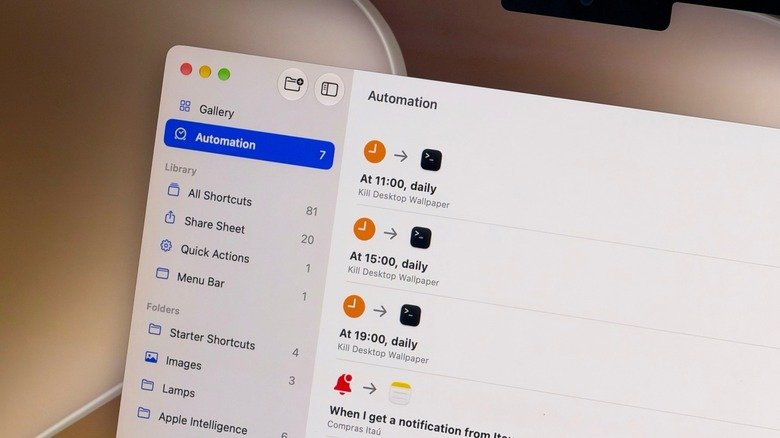
    Various automated actions in Apple's Shortcuts app.

    If a shortcut isn’t part of your normal routine, chances are you’ll forget about it after a while. Thankfully, you can assign a keyboard combo to a shortcut, or pin it to the menu bar, so you’ll never forget it. 

    Choose the shortcut you want to adjust and click Edit. Go to the Shortcut Details menu (the one with the information icon) and select Add Keyboard Shortcut. To add it to the Control Center or menu bar, open Control Center on your Mac (at the top-right) and select Edit Controls. There, all you have to do is add the action from the Shortcuts app, and you’re all set. Exploring the Automation tab is also a good idea for creating a seamless workflow of shortcuts that run on their own when you need them.

    Shortcuts isn’t the only element in macOS 27 that acts on your behalf. Visual Intelligence has its own key combo: Shift + Command + Space. After pressing this, select a window on-screen and have Siri answer questions about it or take action, like adding an event to your calendar. Try it on an email with a date buried in it, for example. Siri can also run your shortcuts

    Shortcuts and Siri AI require Apple Intelligence, which means you need a Mac with an M1 chip or later — Intel Mac users are out of luck. Also, some limits may apply when using Apple’s AI models in Shortcuts. More complex prompts could reach a limit faster.

    MacBook Shortcuts Started your
    Share. Facebook Twitter Pinterest LinkedIn Tumblr Email
    Tool Tech Team
    • Website

    Related Posts

    OpenAI announces new discoveries in mathematics, computer science and physics

    October 27, 2026

    Apple adds more Siri AI tools in its 27.2 system updates, out today

    October 26, 2026

    Fitbit Air vs. Whoop: Which screenless fitness tracker is better for you?

    October 26, 2026

    The best apps for tracking your reading and discovering new books

    October 26, 2026

    What does the bell icon mean on your CarPlay screen?

    October 25, 2026

    Here’s what you need to know before buying a wireless CarPlay adapter

    October 25, 2026
    Leave A Reply Cancel Reply

    Top posts
    Tech

    OpenAI announces new discoveries in mathematics, computer science and physics

    By Tool Tech Team
    Business Software

    X is nudging users to promote their posts with a pointing hand, and people are confused

    By Tool Tech Team
    Web Hosting

    Browser Fingerprinting Explained: How Websites Identify You and How Developers Can Reduce It

    By Tool Tech Team
    Editors Picks

    OpenAI announces new discoveries in mathematics, computer science and physics

    October 27, 2026

    X is nudging users to promote their posts with a pointing hand, and people are confused

    October 27, 2026

    Browser Fingerprinting Explained: How Websites Identify You and How Developers Can Reduce It

    October 27, 2026

    How OpenAI turned its coding tools into dots, an always-on personal assistant

    October 27, 2026
    About Us

    Welcome to ToolTechBlog, your trusted source for the latest insights, reviews, and practical guides on AI tools, business software, cybersecurity, web hosting, and consumer technology.
    Our mission is simple: to help individuals, entrepreneurs, freelancers, students, and businesses discover the right digital tools to improve productivity, streamline workflows, and make informed technology decisions.

    Our Picks

    OpenAI announces new discoveries in mathematics, computer science and physics

    October 27, 2026

    X is nudging users to promote their posts with a pointing hand, and people are confused

    October 27, 2026

    Browser Fingerprinting Explained: How Websites Identify You and How Developers Can Reduce It

    October 27, 2026
    Top Reviews

    The AI Hype Index: Unsexy AI

    July 29, 2026

    What it is and How to Fix it

    July 29, 2026

    LG to Ban Residential Proxies from Smart TV Apps

    July 29, 2026

    © 2026 tooltechblog.com. All rights reserved. Designed by DD.

    • About Us
    • Contact Us
    • Terms and Conditions
    • Privacy Policy
    • Disclaimer

    Type above and press Enter to search. Press Esc to cancel.