




When it comes to SEO and marketing, I like quick and easy wins.
Even though I’m committed to the long journey of blogging (10+ years and counting), I’d much rather push a few buttons and pull a few levers to get more traffic.
Low effort. Big wins. That’s where I like to be.
And, thankfully, there aresome SEO techniques that deliver high value for low effort.
I want to share with you one of those techniques — creating an XML sitemap.
Now before you run away after reading the term “XML sitemap,” let me give you some good news.
Even though an XML sitemap is on the “technical” side of SEO, it’s not hard to make one. And, really, it’s not that “technical” either.
In fact, in just a few minutes you could create a really good XML sitemap. You don’t have to know how to code. You just have to know how to click.
It’s free. It’s easy. It’s relatively simple, and it can improve your SEO.
Ready to give it a try?
What, Exactly, is an XML Sitemap?
What is an XML sitemap?
In simple terms, it’s a list of a website’s URLs.
That’s why it’s called a sitemap.It maps out how the website is structured and what pages the website includes.
(“XML” stands for “Extensible Markup Language,” a way of displaying information on websites.)
That’s what an XML sitemap is, but whyshould you even have one? What’s the purpose?
What’s the Purpose of an XML Sitemap?
Search engines use crawlers to organize and index information on the web.
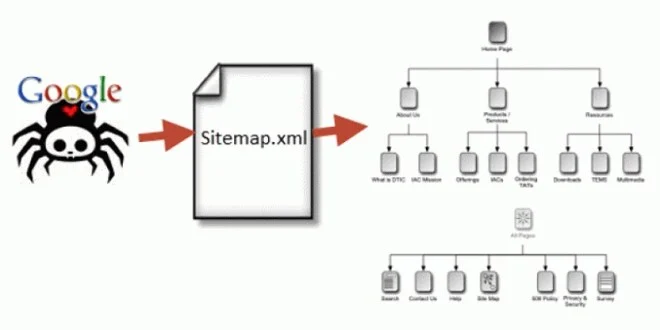
These crawlers can read all kinds of information. But an XML sitemap makes it easyfor the crawler to see what’s on your website and index it.
Once it does this, your website has a stronger likelihood of improving its rank quickly.
Essentially, an XML sitemap serves as a table of contents for your website, allowing the crawler to get the essentials and index your site accordingly.
A well-structured sitemap can do even more, however.
Sitemaps tell search engines when a page was updated, the frequency of updates to the page, the relative importance of pages within a website, and how to find and index content that may be found deep within the site’s structure.
Here’s what the information looks like in a sitemap:
- Where the page is located on the website (its URL): <loc>https://www.example.com/mypage</loc>
- When the page was last changed: <lastmod>2013-10-10</lastmod>
- How often the page is changed: <changefreq>monthly</changefreq>
- What priority the page has in relationship to other pages on the site: <priority>1</priority>
These features are important, especially considering the amount of unauthorized syndication that takes place with content today.
If you aren’t using a sitemap, your website could be seen as containing duplicate content, which isn’t good for SEO.
More importantly, however, a sitemap is a fastway to get indexed by Google.
With a sitemap, you can tell Google, “Look, this is my site, and here are the pages I want you to index.”
Within minutes (usually), Google will crawl your site and index your content.
What Are the Benefits of an XML Sitemap?
If you’re wondering, “Hmm. Do I reallyneed a sitemap? Should I go to all that trouble?” I want to persuade you to, yes,do it. It only takes a few minutes, and the benefits are enormous.
Consider these benefits of an XML sitemap:
- It tells Google to crawl and index your website.
- It tells Google whatto crawl on your website.
- The XML sitemap tells Google what kind of information is on your website.
- The XML sitemap tells Google when your content was updated (which could result in more favorable or “fresh” rankings).
- It tells Google how often your content is updated and how important it is.
- The XML sitemap helps your website instantly gain indexation for dynamically-generated pages.
- It helps you overcome the limitations of a website with weak internal linking.
- It helps your site overcome the challenge of not yet having a strong external link profile.
- It helps huge sites gain better and more organized indexation.
- The XML sitemap helps Google crawl your website more effectively.
- It shows Google all the pages on your website, even if they are deep within the architecture and might not otherwise be crawled as quickly.
If you’re ready to get started on creating your own XML sitemap, we’ll follow a three-step process:
- Create your XML sitemap.
- Add your XML sitemap to your website.
- Submit your XML sitemap to Google.
(I’ll also show you how to submit your Sitemap to Bing and Yandex as well)
The remainder of this article will address each of those points, along with one final step, using Ubersuggest to find potential sitemap errors.
Create an XML Sitemap Using Screaming Frog (for any Website)
You can use Screaming Frog to create an XML sitemap for any website. It doesn’t matter what CMS you’re using, what size the website is, or your website’s age.
In fact, you don’t even need to ownthe website or have login access to it to create the sitemap.
Is there a cost associated with this? Screaming Frog, the tool we’ll use, provides free crawling for up to 500 pages. To crawl websites larger than 500 pages, you will need to purchase a Screaming Frog license.
About Screaming Frog
If you do not have Screaming Frog yet, you need to install it first. You can do so here.
Screaming Frog is a powerful desktop software program that helps with a whole range of SEO activities.
The basic version is free. The full version (with license purchase) costs £149.00 per year (around $180 USD or €170 euro).

In this section, I’ll walk you through how to create an XML sitemap for any website using the free version of Screaming Frog.
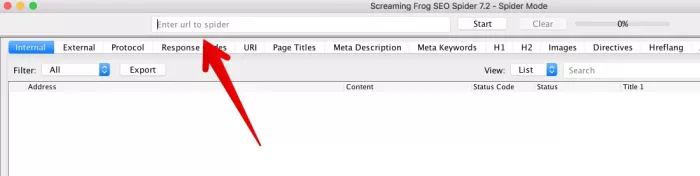
First, open Screaming Frog.
Then, type your URL into the field at the top.
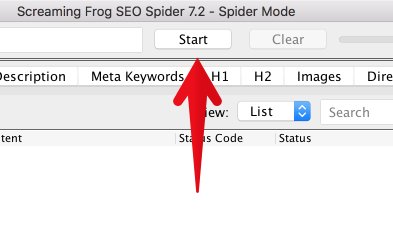
Depending on your website’s size, it will take from a few minutes to a few hours to crawl the site.

For a site like NeilPatel.com (6,600+ pages), it takes a while to crawl, but not too long. I’ve worked on some large e-commerce websites with millions of URLs. These take hours to crawl.
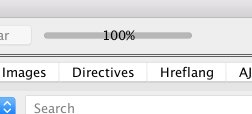
When the site has finished crawling, it will display “100” in the status bar.
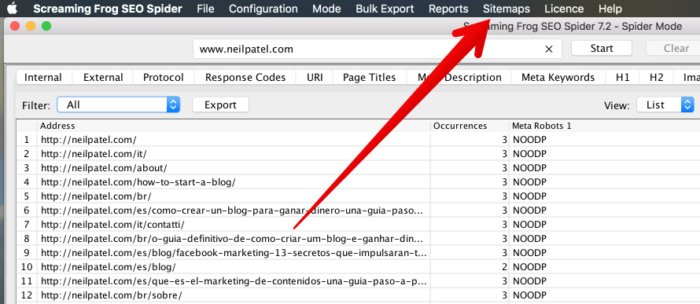
Now, click “Sitemaps” in the menu bar.
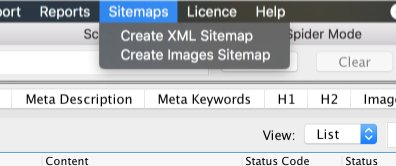
Click “Create XML Sitemap.”
Next, you’ll need to choose which sections of your website you want to include in the XML sitemap.
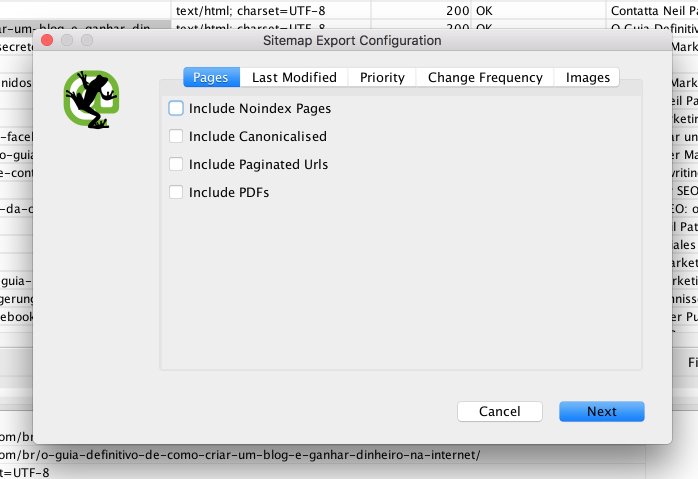
At first glance, this may seem confusing, especially if you’re not sure what “Noindex” or “canonicalised” means.
Here is a brief explanation of each one:
- Include Noindex Pages:Noindex pages contain HTML code in the header telling the search engines notto include the page in the search index. If your developer has set certain pages as “Noindex,” it is probably with good cause. When in doubt, do notcheck this box.
- Include Canonicalised: There may be more than one URL pointing to the same page of content. If you “include canonicalized,” you are telling the crawl tool to include variations of the URLs that point to the same page. If in doubt, leave this unchecked.
- Include Paginated URLs: A paginated URL is one that includes rel= attributes (rel=“prev” and “next”) to navigate through a series of content on a website. Unless you’re careful with it, pagination can be a bit dangerous for SEO. I recommend that you do notcheck this box.
- Include PDFs: You can choose whether or not you want PDFs included in your XML sitemap. Google indexes all kinds of content, PDFs included. I recommend that you doinclude PDFs in your XML sitemap, as long as the PDFs on your website are important and relevant to users who might be searching for your content.
Remember this basic idea. A sitemap is for SEO. If you want someone to find the page on your website, you want to include it in the sitemap.
For my purposes, I’m going to include PDFs.

The tabs “Last Modified,” “Priority,” and “Change Frequency” deal with the date and time that website pages were modified and the <priority> settings.
Unless you have a knowledge of these settings, please leave them as they are by default.
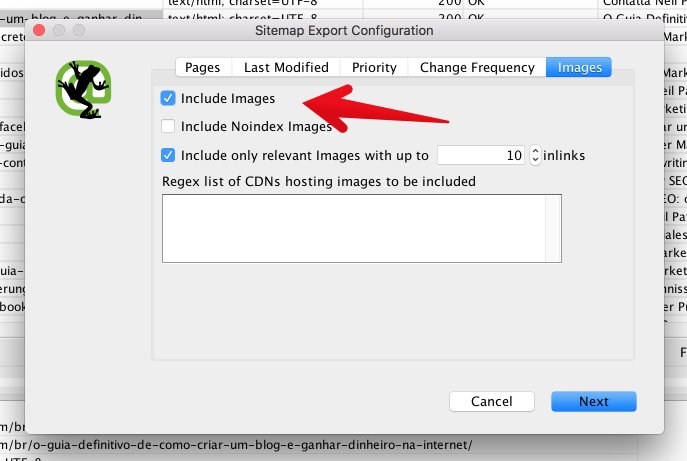
I think it’s a good idea to include images in a sitemap, so I’m going to add those to my sitemap.
Click the “Images” tab.
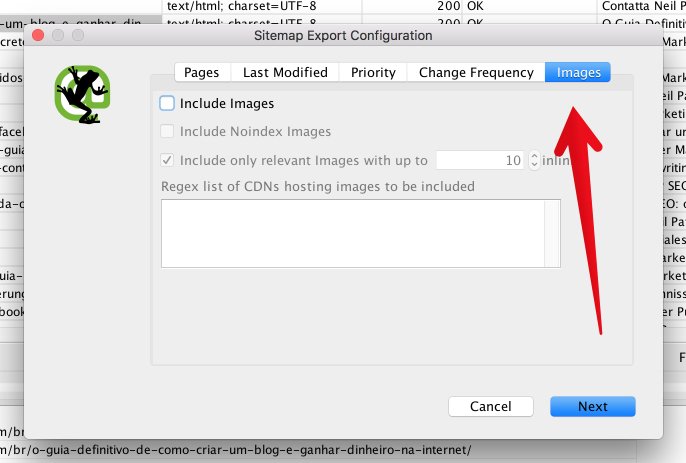
Then, click “Include Images.” The third box (“Include only relevant Images with up to 10 inlinks”) will automatically be checked.
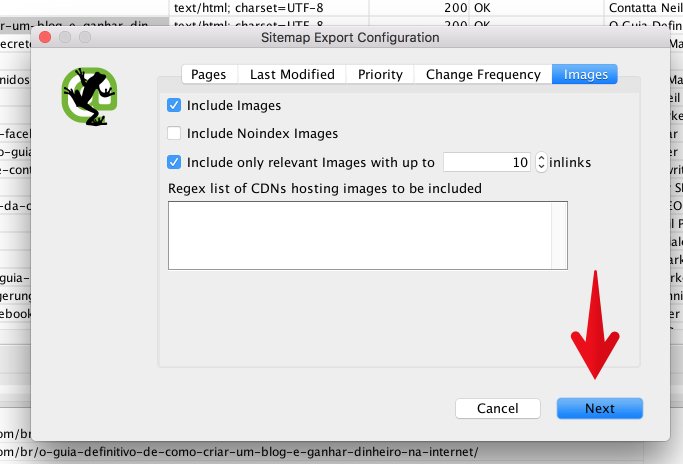
You’ll be prompted to save your XML sitemap on your computer. Find a good place to save it, and click “Save.”
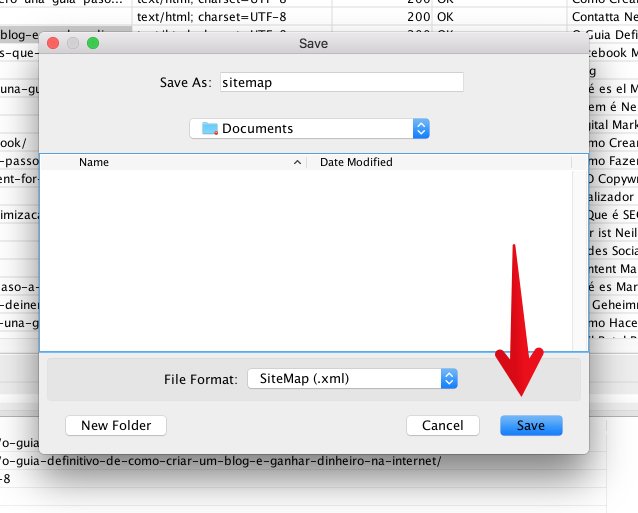
Congratulations! You’ve created an XML sitemap!
You’ll now need to upload this file to your website
If you don’t know how to upload the XML sitemap to your website, check with a developer to determine what process you should follow for your specific server and/or CMS.
But creatinga sitemap is only the first step. A sitemap means nothingunless you submit it to the search engines.
Skip down to the section “Submit your XML sitemap to Google” to learn how to do it.
Create an XML Sitemap Using Yoast (WordPress Only)
Yoast is one of the most popular SEO plugins for WordPress. Yoast makes it easy to create and submit an XML sitemap.
I’ll explain how to do it step-by-step, but first, here’s what you need:
- You must be using a WordPress.org site.
- You must have the Yoast plugin installed. (It’s free.)
- Your website must be connected to Google Search Console.
Most websites already have those three things in place. If you’re ready, let’s jump in.
Login to Your WordPress Admin
Note: In the screenshots below, my WordPress admin might look a little bit different from yours. That shouldn’t keep you from being able to follow each step.
What we’re going to do first is make sure that the Yoast plugin is all ready to create a sitemap for you. To do so, we’ll need to turn on Yoast’s advanced settings.
Click on the Yoast Plugin
It has a “Y” icon, and says “SEO.” It should be located in the left sidebar.
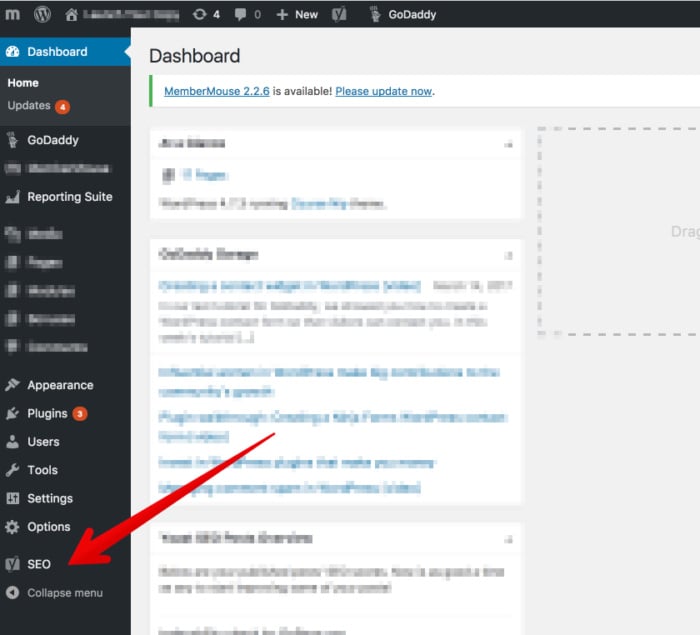
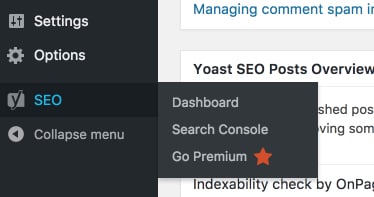
Click the “Dashboard” option.
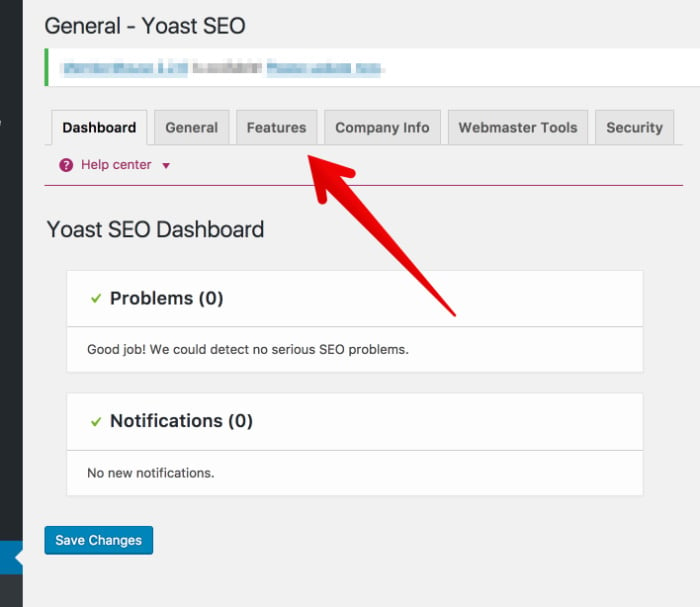
From the Dashboard, click “Features.”
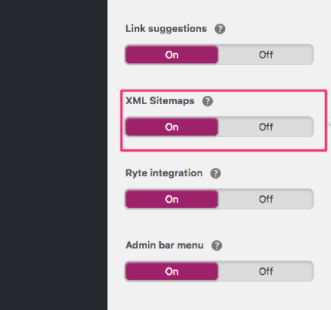
From the Features tab, look for “XML sitemaps” and make sure it is toggled to “On.”
Now, scroll to the bottom and click “Save Changes.”
If you want to customize your sitemap, learn how here. For example, you might want to exclude pages that aren’t public.
In general, however, the sitemap Yoast generates tends to be pretty solid.
Now, it’s time to submit this to Google.
How to Submit Your XML Sitemap to Google
Now it’s time to do something valuable with your sitemap — submit it to Google.
To do this, you’ll need to have Google Search Console connected to your website. Check out this Google guide for instructions on doing so.
First, go to Google Search Console and select your website.
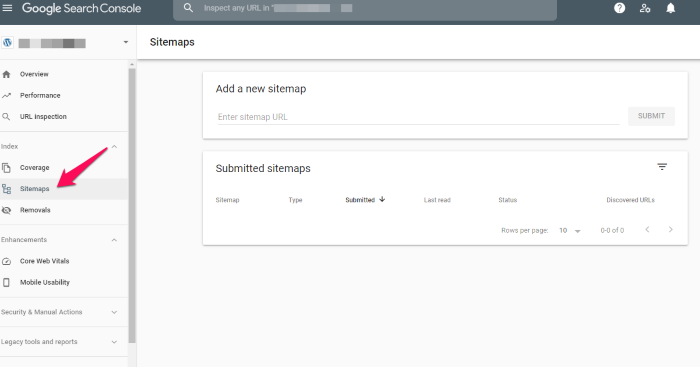
From the dashboard, click “Sitemaps.”
Click “Add a new Sitemap.”
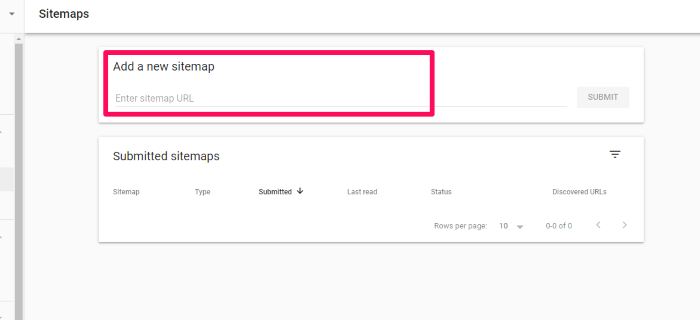
Enter the URL where you’ve saved your sitemap. It should end with “.xml” since it’s an XML file.
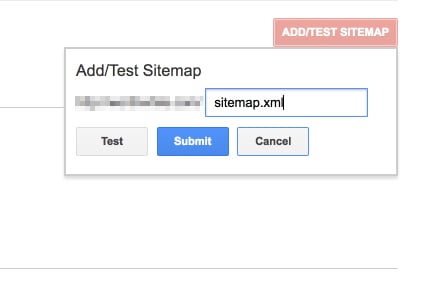
Then use the Sitemaps report to make sure there are no errors. (I’ll also cover another method below.)
Once that’s completed, Google takes care of the rest. Your sitemap allows Google to quickly and seamlessly index your site, helping to boost your rankings.
How to Submit Your XML Sitemap to Bing& Yandex
Google is the largest search engine — but it isn’t the only one. To get the most mileage out of your XML sitemap, I suggest submitting it to Bing and Yandex. Here’s how:
Submit Sitemap to Bing
Bing is Microsoft’s answer to Google. It has a much smaller market share (just over 6%). However, more than 900 million unique users visit Bing a month. Submitting a sitemap to Bing is a breeze, so it’s worth the few minutes to reach their audience.
To submit your sitemap to Bing, login to your Dashboard in Webmaster tools. Find the Sitemaps widget and click “Submit a Sitemap.”
Enter the URL location of your file, and click “Submit.” That’s it!
Submit a Sitemap to Yandex
Yandex is Russia’s version of Google. In Russia, Yandex dominates more than55% of the search market. It also provides email, streaming music, and online payment services. Like Bing, submitting a sitemap only takes a few minutes, so it’s worth the effort to reach a wider audience.
Here’s how to submit your sitemap to Yandex:
Head to to Sitemaps files page, and choose your site from the list.
Add the URL of your sitemap.
Click add.
It will take about two weeks for your sitemap to load. You’ll want to check back and make sure it is uploaded properly; if it says “OK,” then you are good to go. If you see “Redirect,” try uploading the file again.
If you see “error” or “not indexed”, you’ll need to troubleshoot. Use this guide from Yandex to figure out what is going on.
Use Ubersuggest to Check Your XML Sitemap Errors
If you follow the steps above, you shouldn’t have any sitemap errors. But just because you shouldn’t, doesn’t mean you won’t.
Here’s how you can use Ubersuggest to check for sitemap errors:
Step #1: Enter your domain name and click “Search.”

Step #2: Click site audit in the left sidebar.
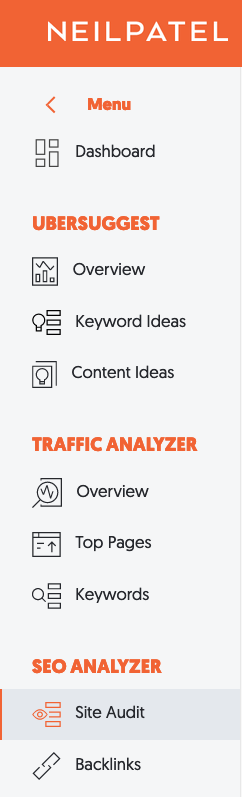
Step #3: Review the results.
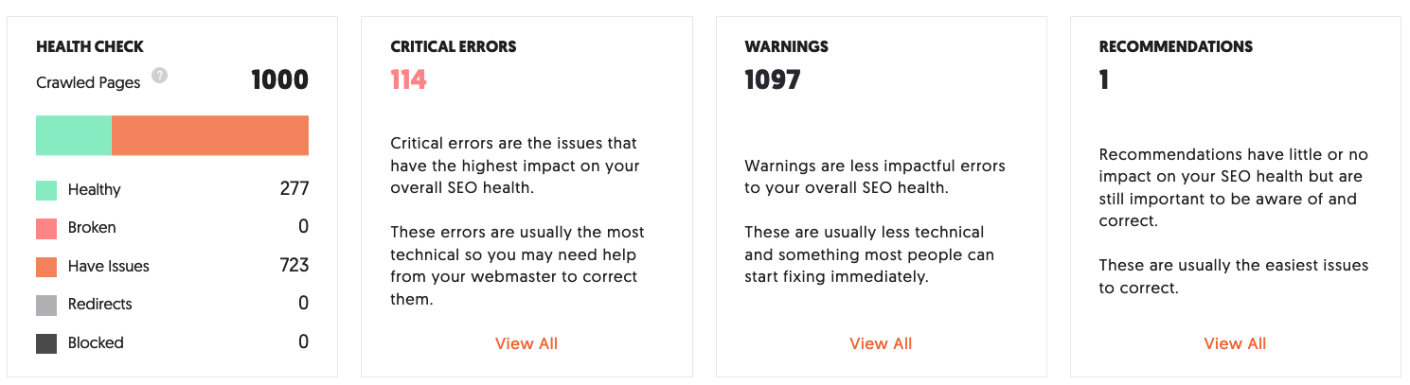
To find issues with your sitemap, review the data associated with the health check, critical errors, warnings, and recommendations.
For example, when you click on Critical Errors, here’s what you see for my website:
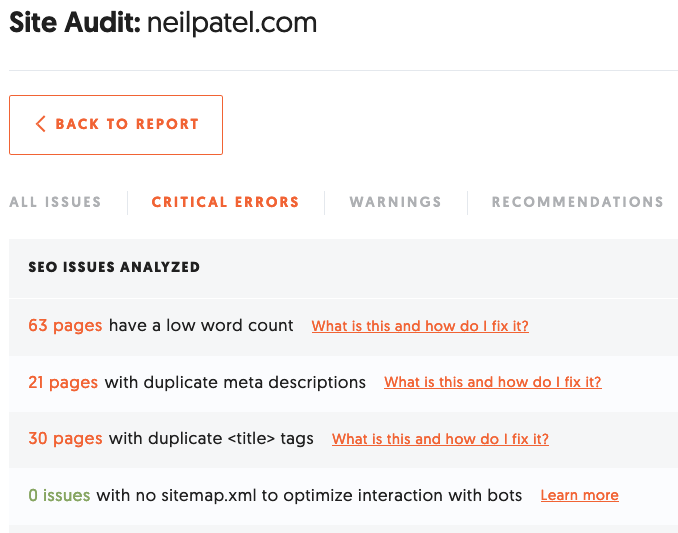
There are no issues with my sitemap, but if there were, here’s where you’d find more information. In addition to the issues itself, there’s a learn more button that takes you to:
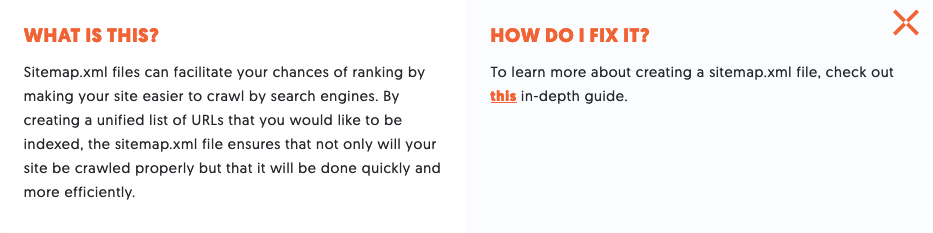
You can then follow the prompts for more guidance on how to fix the error.
Use Ubersuggest to check the health of your sitemap regularly. Doing so once or twice a month will only take a few minutes out of your schedule, but it can go a long way in improving your website’s SEO.
Conclusion
A lot of small business owners and web entrepreneurs get afraid when they hear the term “XML sitemap.”
It sounds jargony and code-like. If you’re not an SEO nerd or a computer geek, how do you figure out how to create and submit an XML sitemap?
As it turns out, it’s not that hard.
Creating a sitemap using a program like Screaming Frog or Yoast takes ten minutes or less.
If you know nothing about sitemaps, and need to go through the whole process for the first time, no problem. Walking through the entire process from start to finish may take, at most, twenty minutes.
The SEO benefits, however, will be enormous.
If you’ve never created an XML sitemap for your website, my advice is simple: Get one made today.
Then,perform a technical SEO audit to see what other issues might be lurking on your site.
You can do it. I’ve got your back.
What’s your experience creating an XML sitemap? How has it helped your site’s SEO?
