


Close Menu
ToolTechBlogToolTechBlog

    Subscribe to Updates

    Get the latest creative news from FooBar about art, design and business.

    What's Hot

    Bose QuietComfort Headphones (2nd gen) review: Upgraded in all the right places

    September 11, 2026

    Jensen Huang explains why Nvidia will grow an astounding 70% next year

    September 11, 2026

    A Developer’s Look at Integrating AI Speech Into Applications

    September 11, 2026
    Facebook X (Twitter) Instagram
    ToolTechBlogToolTechBlog
    • Home
    • AI Tools
    • Web Hosting
    • Tech
    • Digital Marketing
    • Business Software
    • VPN & Cybersecurity
    ToolTechBlogToolTechBlog
    Home»Tech»Apple Wallet is not the same as Apple Pay: Here’s how they differ
    Tech

    Apple Wallet is not the same as Apple Pay: Here’s how they differ

    Tool Tech TeamBy Tool Tech TeamSeptember 10, 2026No Comments4 Mins Read
    Facebook Twitter Pinterest Telegram LinkedIn Tumblr WhatsApp Email
    Apple Wallet is not the same as Apple Pay: Here's how they differ
    Share
    Facebook Twitter LinkedIn Pinterest Telegram Email

    Apple Wallet and Apple Pay work together in important ways, but they aren’t identical.

    Apple Pay and Apple Wallet have distinct functionalities, even though the two names are often used interchangeably. Apple Wallet is an iPhone app (with a companion tool for Apple Watch) that acts a digital wallet to store digital versions of debit and credit cards, auto insurance cards, boarding passes, IDs and more. Apple Pay, on the other hand, is Apple’s digital payment service that lets you use your cards to make purchases at a physical location or online.

    For Apple Pay in-store, you tap your iPhone on an NFC terminal and press the Side button twice. Your iPhone will then confirm it’s you with Face/Touch ID or your PIN to complete a purchase. Online Apple Pay usage is similar to services like PayPal, where you choose a card and authenticate. Regardless of what you buy or where, you’re using Apple Pay to purchase something with a card stored in your Apple Wallet.

    Wallet can also hold plenty of items not directly tied to payments, like concert tickets or store loyalty cards. In this case, it acts as a secure place to hold these items and keep them easily accessible. 

    What happens when you pay with Apple Pay

    Using a payment card with Apple Pay involves more than Apple Wallet storing your card details and passing them to the merchant. Instead, it creates a unique Device Account Number (DAN) for each card and stores this in the Secure Element, a chip on your device for securely storing sensitive info. 

    When you make a payment, Apple sends the DAN, along with a one-time security code specific to that transaction, to the merchant. The store never sees your real credit or debit card number. And Apple ‘s servers don’t keep identifying information about you with the transaction history.

    This is also why an authentication step is required when using Apple Pay. Face ID can be awkward with tap-to-pay on a terminal, so you may want to scan your face before using the NFC touchpoint. As a fallback, you can use your passcode instead. Confirmation is also required for online purchases, whether it’s the App Store, a food app order or a purchase through Safari. Apple Wallet crosses paths with the payment process, since you can choose from any cards you have in your Wallet.

    You can check the last four digits of a card’s unique Device Account Number in Apple Wallet. Open Apple Wallet, select a card, and tap the three-dot (…) button followed by Card Details. There, tap Card Information, and after authenticating with Face ID, you’ll see the Apple Pay last four digits at the bottom. You can use this to distinguish purchases from Apple Pay compared to other ways you use the card.

    Apple Cash is the person-to-person part
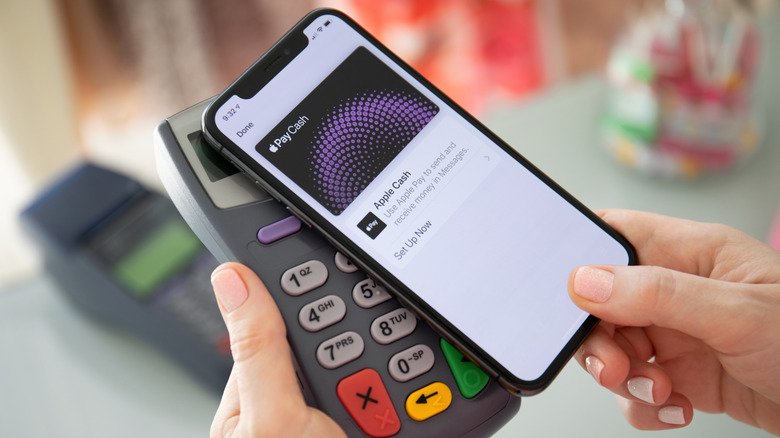
    Apple Cash on an iPhone being used to make an NFC purchase.

    Sending money to a friend or family member is a function of Apple Cash, a feature that ties into Apple Pay. With Apple Cash, you can send or request money over iMessage or directly through the Apple Cash card in your Wallet using Tap to Cash. It’s as easy as selecting someone from your contacts, entering the amount you want to send and authenticating. Of course, the contact’s phone number has to be linked to their Apple Account, and they have to be eligible for Apple Cash.

    After you receive some money, you’ll have access to an Apple Cash “card,” which usually sits near the top of your Apple Wallet. From its menu, you can add money through a debit card, set up recurring payments to others or transfer to your bank. Apple Cash is not a universal payment service; it’s only good for those with Apple devices. If the recipient has Android only, you’ll have to use another service like Venmo.

    As we’ve seen, Apple Wallet and Apple Pay often interact, yet are separate and serve different functions. Apple Wallet is where all your digital payment options are stored. Apple Pay is how you pay merchants or make online purchases. And Apple Cash is how you send money to friends or family.

    Apple Heres same They wallet
    Share. Facebook Twitter Pinterest LinkedIn Tumblr Email
    Tool Tech Team
    • Website

    Related Posts

    Bose QuietComfort Headphones (2nd gen) review: Upgraded in all the right places

    September 11, 2026

    iPhone 18 Pro Max vs Samsung Galaxy S26 Ultra: How these XL phones compete

    September 11, 2026

    Insta360 Luna Pro review: Your Instagram Reels are about to get an upgrade

    September 10, 2026

    Apple Watch’s new AI features are normalizing the idea that technology is always listening

    September 9, 2026

    Instacart now has its own AI assistant called Clementine

    September 9, 2026

    What are the major changes coming to Apple HomeKit in iOS 27?

    September 9, 2026
    Leave A Reply Cancel Reply

    Top posts
    Tech

    Bose QuietComfort Headphones (2nd gen) review: Upgraded in all the right places

    By Tool Tech Team
    Business Software

    Jensen Huang explains why Nvidia will grow an astounding 70% next year

    By Tool Tech Team
    Web Hosting

    A Developer’s Look at Integrating AI Speech Into Applications

    By Tool Tech Team
    Editors Picks

    Bose QuietComfort Headphones (2nd gen) review: Upgraded in all the right places

    September 11, 2026

    Jensen Huang explains why Nvidia will grow an astounding 70% next year

    September 11, 2026

    A Developer’s Look at Integrating AI Speech Into Applications

    September 11, 2026

    Powering AI is an architecture problem

    September 11, 2026
    About Us

    Welcome to ToolTechBlog, your trusted source for the latest insights, reviews, and practical guides on AI tools, business software, cybersecurity, web hosting, and consumer technology.
    Our mission is simple: to help individuals, entrepreneurs, freelancers, students, and businesses discover the right digital tools to improve productivity, streamline workflows, and make informed technology decisions.

    Our Picks

    Bose QuietComfort Headphones (2nd gen) review: Upgraded in all the right places

    September 11, 2026

    Jensen Huang explains why Nvidia will grow an astounding 70% next year

    September 11, 2026

    A Developer’s Look at Integrating AI Speech Into Applications

    September 11, 2026
    Top Reviews

    The AI Hype Index: Unsexy AI

    July 29, 2026

    What it is and How to Fix it

    July 29, 2026

    LG to Ban Residential Proxies from Smart TV Apps

    July 29, 2026

    © 2026 tooltechblog.com. All rights reserved. Designed by DD.

    • About Us
    • Contact Us
    • Terms and Conditions
    • Privacy Policy
    • Disclaimer

    Type above and press Enter to search. Press Esc to cancel.