




Converting the device is not as easy as simply plugging in an HDMI cord, but here’s what does work.
Whether you’re gaming, working or simply browsing the web, adding a second monitor is one of the best ways to upgrade your workflow. Mirroring the display, which shows the same desktop on both screens, can be handy for presentations, while extending the display gives you one wider desktop. Extending the desktop into additional screen space means more visible tabs, easier multitasking and increased productivity. But making this change does not necessarily require buying a fancy setup. If you have a spare laptop lying around at home, you can make a few small tweaks to use dual monitors without going all-in on new hardware.
Converting your laptop into a second screen is fairly straightforward but not necessarily as simple as plugging in an HDMI cable. First you need to check your computer’s compatibility, consider wired versus wireless options and tweak some settings on your system to smoothly extend or mirror the display. So how, exactly, do you turn your laptop into a second monitor? Here are the steps for Windows, Mac and Linux, as well as wired options
How to use a Windows laptop as a second monitor
If both your primary computer and the spare laptop you want to use as a second monitor are running Windows 10 or 11, extending or mirroring them is quite simple due to the operating systems’ built-in wireless casting tools. These rely on Miracast, a functionality that enables connections between devices
To activate it, go to your spare laptop, open Settings, then System, then Projecting to this PC. Click Optional features, then View features, then select Wireless Display to add it. Once it installs, return to the same page and set it to Available everywhere, and open the Wireless Display app.
Now, you’re ready to mirror or extend your display. On your main computer, press the Windows key + K, select the spare laptop from the list of available displays, enter the PIN and allow keyboard and mouse input. You can then choose to duplicate your screen or extend it, and you can switch anytime with Windows key + P. Keep in mind, this method of connecting <a href="https://tooltechblog.com/syncing-apple-music-across-your-devices-is-easier-than-you-think/” title=”Syncing Apple Music across your devices is easier than you think”>your devices does require Wi-Fi on both machines, and you may experience some lag. Therefore, while it’s great for presentations or organizing large numbers of tabs, it may not be the best choice for gaming.
Can I use other operating systems as a second monitor?
If both of your devices are Macs, you can use AirPlay to connect the two, but only if the MacBook is from 2018 or later. Once you’ve confirmed your device is compatible, go to the MacBook you want to use as the second screen, open System Settings, select General, then AirDrop & Continuity. Turn on AirPlay Receiver and then under Allow AirPlay for, select Current User. Make sure both MacBooks are signed into the same Apple ID to ensure a smooth connection. On your primary device, open System Settings, then Displays and click the plus sign from the dropdown menu to select your secondary device from the list. Decide if you want mirroring or extended display, which can be selected under settings. Like Windows’ Miracast, Apple’s AirPlay works over Wi-Fi and can thus have a slight delay. For a wired option with less lag, see the HDMI section below.
If connecting between two different operating systems, whether between a Windows PC and a MacBook or anything involving Linux, you will need software like Deskreen, a free, open-source tool that runs on Wi-Fi. To connect, make sure both computers are on the same Wi-Fi network, and download Deskreen on the main device. Deskreen will offer a QR code and URL. Open this on the spare laptop’s browser to connect the devices. Deskreen mirrors the display by default. To extend to the spare laptop, you will need a cheap virtual display adaptor, or a “dummy plug,” in your main computer’s HDMI port. Like the other systems, any software that connects devices over Wi-Fi will have some lag, so consider the wired option below for gaming or other activities that rely on smoother connections.
Can I use an HDMI cable to connect my devices?
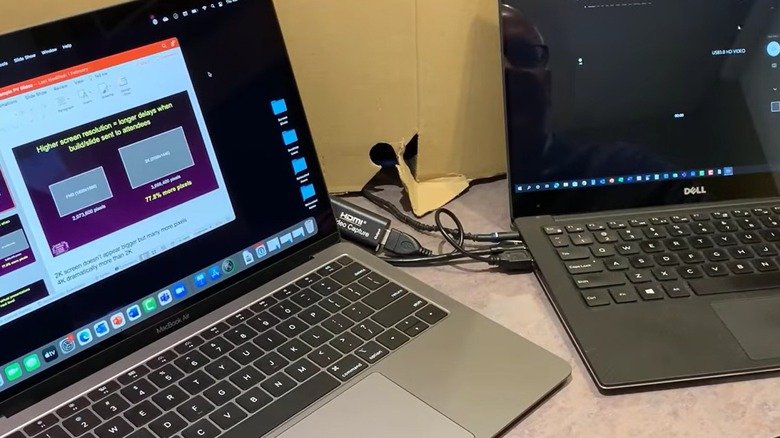
Most laptop HDMI ports are video-out only, so plugging two devices together with a cord will not directly allow you to extend or mirror displays. To work around this, get an HDMI-to-USB video capture card, which can be plugged into both laptops. Plug your main device’s HDMI cable into the card, then plug the card’s USB end into the spare laptop. The capture card will function as a webcam, so you can view the feed in your laptop’s camera app or a free video app like OBS Studio, which runs on Windows, Mac and Linux.
If you are gaming and want to play a console without a TV, you can connect a PlayStation or a Nintendo Switch to the laptop in the same way. Again, there may be a small amount of lag but usually less than Wi-Fi-based connections, and it’s unlikely to trip you up unless you are a competitive gamer. If none of these uses appeal to you, you can always use your old laptop to make a smart home hub.
