


Close Menu
ToolTechBlogToolTechBlog

    Subscribe to Updates

    Get the latest creative news from FooBar about art, design and business.

    What's Hot

    Meta weighs delaying ‘alarming’ new business terms as backlash grows

    October 28, 2026

    Hacker stole personnel data about thousands of Homeland Security employees, including CBP and ICE agents

    October 28, 2026

    How to Source Passive Candidates with AI in 2026

    October 28, 2026
    Facebook X (Twitter) Instagram
    ToolTechBlogToolTechBlog
    • Home
    • AI Tools
    • Web Hosting
    • Tech
    • Digital Marketing
    • Business Software
    • VPN & Cybersecurity
    ToolTechBlogToolTechBlog
    Home»Tech»How to customize Camera Control on your iPhone
    Tech

    How to customize Camera Control on your iPhone

    Tool Tech TeamBy Tool Tech TeamOctober 3, 2026No Comments4 Mins Read
    Facebook Twitter Pinterest Telegram LinkedIn Tumblr WhatsApp Email
    How to customize Camera Control on your iPhone
    Share
    Facebook Twitter LinkedIn Pinterest Telegram Email

    Make your iPhone’s camera behave exactly how you want

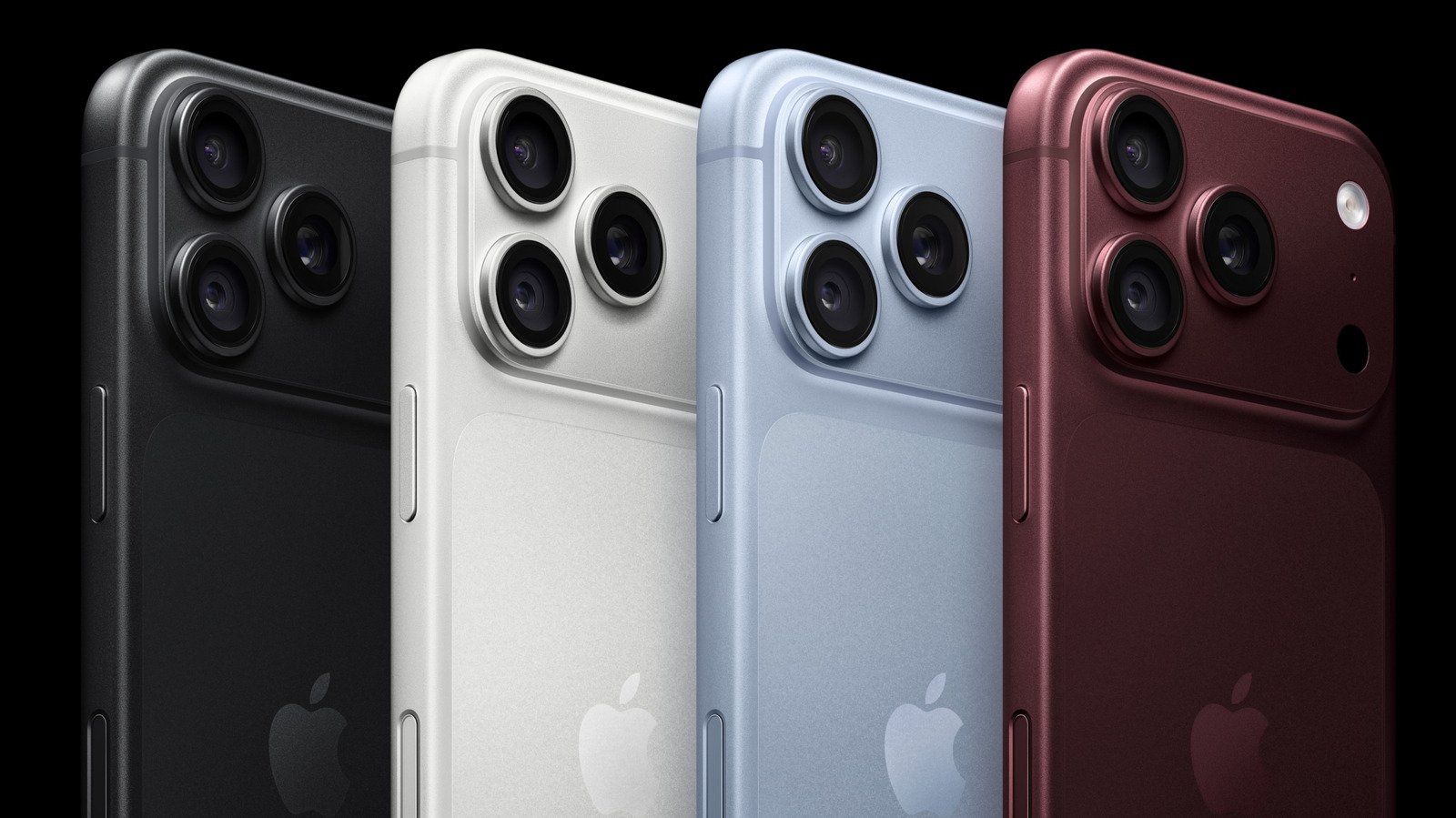
    Are you getting everything you can out of the button at the lower right of your iPhone 16, 17, and 18 series? The button is the phone’s Camera Control, which can be customized to support your mobile photography workflow.

    To clear up any confusion, Camera Control refers to the capacitive button on the right side of your iPhone, which understands a range of gestures, including single- and double-clicks and swipe gestures. You use it to open the camera, take pictures, record videos and work with the advanced photography settings on your iPhone. 

    Perfect for one-handed photography, Camera Control’s default inputs are:

    • Click the button once to launch the Camera.
    • Swipe to use different photography tools such as exposure or zoom while in the app
    • Click again to take the image.
    • Long-press to capture video.
    • Double-click to launch Visual Intelligence, which lets you use the camera to ask Siri questions about your surroundings.

    How to customize the Camera Control button

    You can change the default behaviors in Settings > Camera > Camera Control. This takes you to a pane of many options, including two important sections you should explore first: Launch Camera and Controls, alongside several smaller tweaks.

    For Launch Camera, tap Camera to choose which supported app to open when you press the Camera Control button. Camera is enabled by default, but you’ll find other options if the relevant app is installed. These may include Instagram, which makes your iPhone an instant story creation tool, Code Scanner to scan QR codes or Magnifier, which turns your iPhone into a high-powered digital magnifying glass. You may also see other third-party apps, some of which may be grayed out pending full support.

    The Controls section includes a range of settings you should explore, including Camera Adjustments. When activated, this makes Camera Control even more useful. When your Camera app is active, light presses or swipes on the button will let you explore camera options and adjustments.

    Customize lets you decide what gestures Camera Control supports while in that mode, including support for light presses and swipes. It also lets you enable and disable the six adjustments potentially supported by Camera Control, which include:

    • Zoom
    • Exposure
    • Depth
    • Cameras
    • Styles
    • Tone

    Tap to enable and disable the tick beside the function, or press and hold the burger icon (three horizontal lines) beside each item to move it into your preferred order. In the future, when taking a picture, you’ll be able to swipe the Camera Control to move through those different adjustments in the order you define.

    Exploring additional Camera Control options
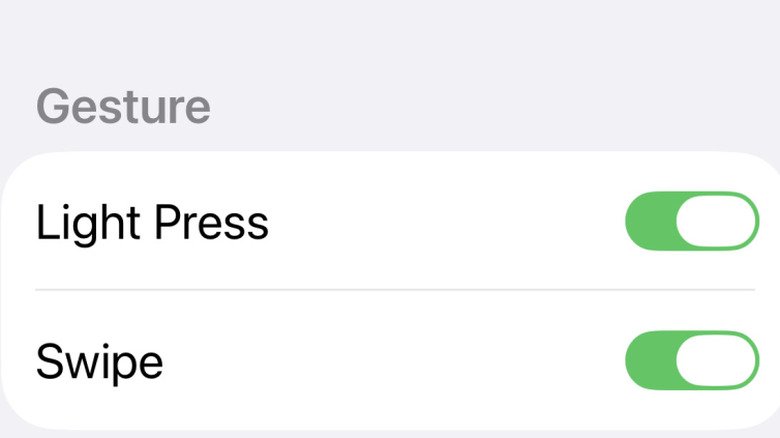
    The Setting pane to control gestures on Camera Control button shows light press and swipe.

    Along with the above-referenced features, Camera Control also allows:

    • Single Click or Double Click: Double Click can be best to avoid accidental camera activations.
    • Require Screen On: When enabled, this toggle-based control will prevent accidental Camera activation when your iPhone is locked.
    • Lock Focus and Exposure: When this is active, Camera Control will maintain focus and exposure so long as you continue to touch it.
    • Launch Visual Intelligence: When active, press and hold the Camera button to open Visual Intelligence, which lets you ask Siri about your surroundings.

    There are several additional customizations available in Settings > Accessibility > Camera Control. Here you can disable the button completely and define the force and speed required to make the button respond to a press, choosing between Default, Slow and Slower.

    I’ve found setting button behaviors to Slow helps stop accidentally opening the Camera when handling my device, and trimming the camera adjustments to Zoom, Exposure and Styles helps me focus on the image, not the controls I don’t frequently use. 

    That’s the point of Camera Control, really — configure it to support your workflow while making it much, much easier to take photos, videos and use Visual Intelligence with one hand.

    camera Control customize iPhone your
    Share. Facebook Twitter Pinterest LinkedIn Tumblr Email
    Tool Tech Team
    • Website

    Related Posts

    Meta weighs delaying ‘alarming’ new business terms as backlash grows

    October 28, 2026

    iOS 27.2 brings two new features to Apple’s CarPlay

    October 28, 2026

    Rockstar workers in the UK will hold a union vote just as GTA 6 is released

    October 27, 2026

    OpenAI announces new discoveries in mathematics, computer science and physics

    October 27, 2026

    Apple adds more Siri AI tools in its 27.2 system updates, out today

    October 26, 2026

    Uh oh, it sounds like the iPhone Duo keeps cracking and users aren’t happy about it

    October 26, 2026
    Leave A Reply Cancel Reply

    Top posts
    Tech

    Meta weighs delaying ‘alarming’ new business terms as backlash grows

    By Tool Tech Team
    Business Software

    Hacker stole personnel data about thousands of Homeland Security employees, including CBP and ICE agents

    By Tool Tech Team
    Web Hosting

    How to Source Passive Candidates with AI in 2026

    By Tool Tech Team
    Editors Picks

    Meta weighs delaying ‘alarming’ new business terms as backlash grows

    October 28, 2026

    Hacker stole personnel data about thousands of Homeland Security employees, including CBP and ICE agents

    October 28, 2026

    How to Source Passive Candidates with AI in 2026

    October 28, 2026

    How to Teach Content Strategy to Stakeholders Who Don’t Speak Marketing

    October 28, 2026
    About Us

    Welcome to ToolTechBlog, your trusted source for the latest insights, reviews, and practical guides on AI tools, business software, cybersecurity, web hosting, and consumer technology.
    Our mission is simple: to help individuals, entrepreneurs, freelancers, students, and businesses discover the right digital tools to improve productivity, streamline workflows, and make informed technology decisions.

    Our Picks

    Meta weighs delaying ‘alarming’ new business terms as backlash grows

    October 28, 2026

    Hacker stole personnel data about thousands of Homeland Security employees, including CBP and ICE agents

    October 28, 2026

    How to Source Passive Candidates with AI in 2026

    October 28, 2026
    Top Reviews

    The AI Hype Index: Unsexy AI

    July 29, 2026

    What it is and How to Fix it

    July 29, 2026

    LG to Ban Residential Proxies from Smart TV Apps

    July 29, 2026

    © 2026 tooltechblog.com. All rights reserved. Designed by DD.

    • About Us
    • Contact Us
    • Terms and Conditions
    • Privacy Policy
    • Disclaimer

    Type above and press Enter to search. Press Esc to cancel.