



Community Article
Community articles are authored by SitePoint Premium contributors. Content is screened before publication, and SitePoint reserves the right to moderate or remove articles that violate our guidelines. Views expressed are those of the authors and do not necessarily reflect those of SitePoint.
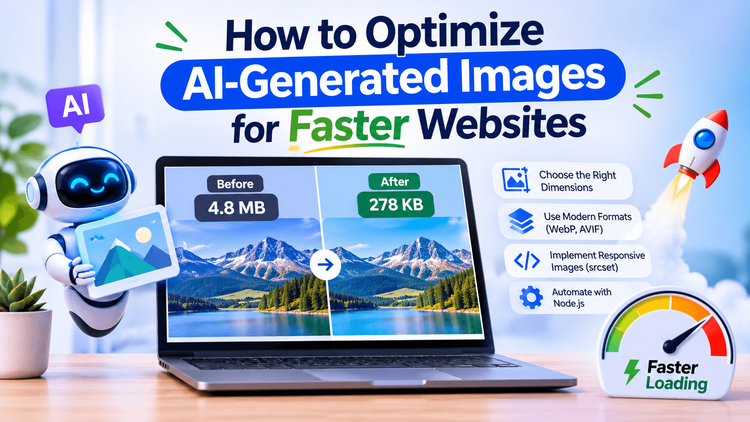
How to Optimize AI-Generated Images for Faster Websites
ASAsjad SEOPublished inAI·E-commerce·Meta·
October 31, 2026
·Updated:October 31, 2026
The AI briefing for Developers
Stay up to date with AI tools, model releases, and developer workflows that matter.
Weekly. Free. One click to leave.
SitePoint Premium
Stay Relevant and Grow Your Career in Tech
- Premium Results
- Publish articles on SitePoint
- Daily curated jobs
- Learning Paths
- Discounts to dev tools
7 Day Free Trial. Cancel Anytime.
AI-generated images are becoming a common part of modern web development. Developers use them for website banners, product illustrations, landing pages, blog posts, and digital interfaces. However, generating an image is only one part of the process. Before publishing it, developers need to ensure that the image loads quickly, displays correctly across devices, and maintains its visual quality.
Large image files can increase page size, consume unnecessary bandwidth, and delay the appearance of important content. These problems can affect user experience and website performance, particularly on mobile devices and slower internet connections.
A reliable image optimization workflow helps address these challenges. By selecting appropriate dimensions, choosing efficient image formats, automating image processing, and implementing responsive delivery, developers can improve loading performance without sacrificing visual quality.
This guide explains how to optimize AI-generated images using practical techniques and development tools.
Why Image Optimization Matters
Images often account for a significant portion of a webpage’s total download size. Uploading large, unoptimized images can make pages slower and increase the amount of data visitors need to download.
Several common problems contribute to poor image performance:
Large files take longer to download.
Incorrect dimensions waste bandwidth on smaller screens.
Inefficient formats increase file sizes.
Missing image dimensions can cause unexpected layout shifts.
Poor responsive configuration can make browsers download unnecessarily large images.
Incorrect loading priorities can delay important visual content.
These issues can affect Core Web Vitals, including Largest Contentful Paint (LCP), which measures how quickly the largest visible content element appears.
For developers, image optimization should therefore be part of the website development workflow rather than a final task performed immediately before publication.
Step 1: Choose the Right Image Dimensions
Before optimizing an image, determine where it will appear on the website. A full-width banner requires different dimensions from a product thumbnail or a small interface graphic.
For example, a website might use the following dimensions:
| Image Type | Example Dimensions |
|---|---|
| Hero banner | 1440 × 810 |
| Blog illustration | 1200 × 675 |
| Product thumbnail | 600 × 600 |
| Small interface graphic | 320 × 320 |
These dimensions are examples rather than fixed requirements. The appropriate size depends on the website layout, responsive breakpoints, and supported devices.
When preparingn options and consider how the generated images will fit their intended layouts
Once the image is ready, keep a high-quality master file. This allows developers to create smaller versions for different screen sizes without repeatedly compressing an already optimized image.
Avoid enlarging small images unnecessarily because upscaling can introduce blur and visible artifacts.
Step 2: Select an Appropriate Image Format
Choosing the right format can reduce image size while preserving acceptable visual quality.
Three commonly used formats are AVIF, WebP, and JPEG.
AVIF: Often provides efficient compression for photographs and detailed illustrations. It can significantly reduce file sizes, although encoding may take longer.
WebP: Supports lossy and lossless compression, transparency, and animation. It offers broad browser support and is suitable for many website images.
JPEG: Remains useful for photographs and situations where compatibility with older software or systems is important.
PNG is appropriate for certain lossless graphics, screenshots, and images that require transparency. However, it can produce unnecessarily large files when used for photographic content.
No format is automatically the best choice for every image. Developers should compare file sizes and inspect visual quality before selecting the final output.
A practical approach is to generate AVIF and WebP versions and provide a JPEG fallback where necessary.
Step 3: Automate Image Processing With Node.js
Manually resizing and converting images becomes time-consuming when a website contains dozens or hundreds of visual assets.
Automation makes the process more consistent. Developers can use Sharp, a Node.js image-processing library, to resize images, convert formats, and generate multiple versions from a single
Next, create a file named build-images.mjs:
importsharpfrom'sharp';import{ mkdir }from'node:fs/promises';const input ='src/hero-master.png';const outputDirectory ='dist';const widths =[480,768,1080,1440];awaitmkdir(outputDirectory,{recursive:true});for(const width of widths){const image =sharp(input).resize({width,withoutEnlargement:true});awaitPromise.all([image.clone().webp({quality:80}).toFile(`${outputDirectory}/hero-${width}.webp`),image.clone().avif({quality:55}).toFile(`${outputDirectory}/hero-${width}.avif`)]);}console.log('Image processing complete.');The script creates multiple image sizes in both WebP and AVIF formats.
The quality settings are starting points, not universal recommendations. Developers should adjust them after checking the resulting file sizes and visual details.
This approach is particularly useful for content-heavy websites, product catalogs, and applications that publish images regularly.
Step 4: Implement Responsive Images
Responsive image delivery allows browsers to select an appropriate image based on the visitor’s screen and the space available in the layout.
HTML provides two important attributes for this purpose: srcset and sizes.
The srcset attribute lists the available image files and their widths. The sizes attribute describes how wide the image is expected to appear at different viewport sizes.
<imgsrc="/images/hero-1080.webp"srcset="/images/hero-480.webp 480w,/images/hero-768.webp 768w,/images/hero-1080.webp 1080w,/images/hero-1440.webp 1440w"sizes="(min-width: 800px) 720px, 100vw"width="1440"height="810"alt="A modern home office with natural light">In this example, the image is expected to occupy approximately 720 pixels on wider screens and nearly the full viewport width on smaller screens.
The browser uses this information to choose an appropriate image candidate.
One common mistake is setting sizes="100vw" for an image that occupies only a small part of the page. This can encourage the browser to download a larger file than necessary.
Always ensure that the sizes attribute reflects the actual website layout.
Step 5: Serve Modern Formats With the Picture Element
The HTML picture element allows developers to provide multiple image formats and a fallback option.
<picture><sourcetype="image/avif"srcset="/images/hero-768.avif 768w,/images/hero-1440.avif 1440w"sizes="100vw"><sourcetype="image/webp"srcset="/images/hero-768.webp 768w,/images/hero-1440.webp 1440w"sizes="100vw"><imgsrc="/images/hero-1440.jpg"width="1440"height="810"alt="A modern home office with natural light"></picture>The browser selects a supported format, while the img element provides the fallback image and alternative text.
Developers should verify that every referenced file exists and that its dimensions match the intended layout.
The picture element can also support different crops for desktop and mobile devices. This is useful when a wide banner needs a separate composition for smaller screens.
Step 6: Prevent Layout Shifts and Prioritize Important Images
Images without defined dimensions can cause content to move while the browser loads the file. This behavior contributes to Cumulative Layout Shift (CLS).
Including width and height attributes helps browsers reserve the appropriate space before the image finishes loading.
For responsive layouts, developers can use CSS:
img{max-width:100%;height: auto;}This allows images to scale within their containers while maintaining their proportions.
Loading priority also matters.
Images below the initial viewport can generally use native lazy loading:
<imgsrc="/images/article-example.webp"width="800"height="600"alt="An example website illustration"loading="lazy">However, the main hero image should not normally be lazy-loaded when it is responsible for LCP. Delaying an important above-the-fold image can make the page appear slower.
Where appropriate, developers can use fetchpriority="high" for the main image to help the browser prioritize its download.
The correct strategy depends on the image’s position and importance within the page.
Step 7: Optimize Alt Text and Image Metadata
Image optimization involves more than file size and dimensions. Developers should also consider accessibility, file organization, and metadata.
Alternative text helps people using screen readers understand meaningful images. It should describe the image’s purpose in the context of the page.
<imgsrc="/images/home-office.webp"alt="A home office with a wooden desk beside a window">Decorative images that provide no useful information should generally use an empty alt attribute.
File names should also be descriptive. Names such as home-office-sunrise.webp are easier to understand and maintain than generic names such as image-final-v3.png.
Metadata requires additional consideration. Image-processing tools may remove metadata by default to reduce file size. This can include information that a project needs to preserve, depending on its requirements.
Before removing metadata, developers should review whether the website or client requires attribution, provenance information, or other embedded details.
Step 8: Test Image Performance
After implementing an optimization workflow, test the actual website rather than relying only on exported file sizes.
Chrome DevTools provides useful information about image requests.
Open the webpage in Chrome.
Open Developer Tools and select the Network panel.
Filter requests by images.
Reload the page.
Resize the viewport or use device emulation.
Check whether the browser downloads appropriately sized images.
Developers can also inspect the image selected by the browser through the console:
document.querySelector('img').currentSrcThis returns the current image URL selected for that element.
For websites with multiple images, inspect the relevant elements individually.
Finally, run an audit using Lighthouse or PageSpeed Insights. These tools can identify issues involving oversized images, image formats, loading priorities, and other performance factors.
Image optimization is only one part of website performance. Server response times, caching, CSS, JavaScript, and third-party scripts can also influence loading speed.
Common Image Optimization Mistakes
Several mistakes can reduce the effectiveness of an image optimization workflow:
Uploading original images without checking their dimensions.
Assuming one format always produces the smallest file.
Omitting the sizes attribute from responsive images.
Forgetting width and height attributes.
Lazy-loading important above-the-fold images.
Applying excessive compression and damaging visual details.
Generating unnecessary image variations.
Testing only on desktop devices.
Removing metadata without checking project requirements.
Measuring file size without inspecting the final visual quality.
A consistent testing process helps identify these issues before they affect visitors.
Frequently Asked Questions
Is AVIF Always Better Than WebP?
No. AVIF often provides efficient compression, but the results depend on the image, encoding settings, and quality requirements. Comparing both formats is the best way to choose an appropriate option.
How Many Image Sizes Should a Website Generate?
Four to six sizes may be sufficient for many websites. The ideal number depends on the layout, responsive breakpoints, and supported devices.
Can Image Optimization Improve LCP?
Yes. Reducing the size of the main content image, providing responsive versions, and avoiding unnecessary loading delays can improve LCP when that image is the largest contentful element.
Should Every Image Use Lazy Loading?
No. Lazy loading is useful for images outside the initial viewport. Important images near the top of the page should generally load promptly.
Do AI-Generated Images Require Different Optimization Techniques?
The fundamental techniques are the same as those used for conventional images. However, AI-generated visuals may contain complex textures, gradients, and fine details that require careful inspection after compression.
Final Thoughts
AI-generated images can improve website design and make it easier to create custom visual content. However, efficient delivery requires more than exporting an image and uploading it to a website.
Developers should choose suitable dimensions, compare modern image formats, automate processing, and implement responsive image delivery. Including image dimensions helps prevent layout shifts, while appropriate loading priorities can improve the experience for visitors.
A repeatable optimization workflow makes it easier to publish new visuals without sacrificing website speed, accessibility, or reliability.
